

If your app includes third-party authentication providers like Google login or GitHub login, Apple requires you to also provide an equivalent login option that prioritizes user privacy by limiting data collection to name and email, allowing users to hide their email address, and preventing advertising-related data collection without user consent. Sign in with Apple satisfies these requirements.
Configure Your Apple Developer Account
Go to your Apple Developer account. Under "Identifiers", find your app's bundle ID. Then go to "Capabilities" and enable "Sign In with Apple". Configure it and fill in firebase auth handler.
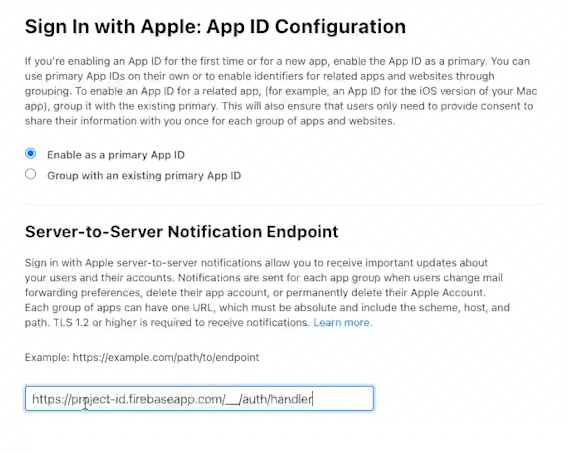
If you're using Firebase, you don't need to fill in the Firebase Project ID when enabling this. Just check the box so Firebase gets account update notifications.
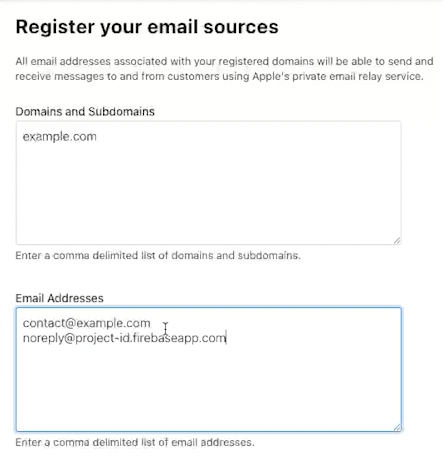
Also, go to "Services". Apple uses a private relay email to forward emails to users who choose to hide theirs. But for this to work, you must whitelist your domain and email address. If Firebase is sending your emails, include your no-reply Firebase email too. If you skip this, Apple will block your emails.
Set Up Apple Login in Firebase
In Firebase, go to "Authentication", then "Sign-in Method", and enable Apple as a provider.
You'll need three things: team ID, key ID, and a private key.
Get these from the Apple Developer portal:
- Go to "Certificates, Identifiers & Profiles"
- Create a new key
- Enable "Sign In with Apple"
- Link it to your app's bundle ID
- After creating the key, copy the key ID and download the private key file
Paste the key ID into Firebase and upload the private key. The team ID is in the top-right corner of your Apple Developer account.

Update Expo Config and Firebase Files
If you're using Expo, update your Expo config to include Apple sign-in support. Then re-download your GoogleService-Info.plist file since your Firebase setup changed.
Add Apple Login Button in React Native
Use the expo-apple-authentication module in your code. Create a simple component with an Apple login button. Styling options are limited, you can only choose between dark and light themes, adjust round corners, height and width.
When the button is pressed, connect the Apple credentials to Firebase using signInWithCredential. This is what makes the user show up in Firebase's user list.
const AppleLogin: React.FC<Props> = ({
  onLoggedIn,
  onError,
  cornerRadius,
  dark,
  style = { minWidth: 240, width: '100%', height: 120 },
}) => {
  const onAppleButtonPress = async () => {
    try {
      const credential = await AppleAuthentication.signInAsync({
        requestedScopes: [
          AppleAuthentication.AppleAuthenticationScope.FULL_NAME,
          AppleAuthentication.AppleAuthenticationScope.EMAIL,
        ],
      });

      if (!credential.identityToken) {
        throw new Error('Apple Sign-In failed - no identify token returned');
      }

      const appleCredential = auth.AppleAuthProvider.credential(credential.identityToken);
      const usr = await auth().signInWithCredential(appleCredential);
      await onLoggedIn(usr);
    } catch (err) {
      if (err.code === 'ERR_REQUEST_CANCELED') {
        // User cancelled the sign-in flow, do nothing
        return;
      } else {
        await onError(err);
      }
    }
  };

  return (
    <AppleAuthentication.AppleAuthenticationButton
      buttonType={AppleAuthentication.AppleAuthenticationButtonType.SIGN_IN}
      buttonStyle={
        dark
          ? AppleAuthentication.AppleAuthenticationButtonStyle.WHITE
          : AppleAuthentication.AppleAuthenticationButtonStyle.BLACK
      }
      cornerRadius={cornerRadius}
      style={style}
      onPress={onAppleButtonPress}
    />
  );
};
Platform-Specific Components
If you only want this button to show on iOS, name your component something like AppleLogin.ios.tsx and create a dummy fallback for other platforms.
const AppleLogin: React.FC<Props> = () => {
  return <></>;
};

export default AppleLogin;
dummy component for other platforms
That's the full setup. Once done, users can log in using their Apple ID, and you stay compliant with Apple’s privacy rules.
Youtube: https://youtu.be/jgJIg6kxKh8


